FACEIT anti-cheat not working? Every common error and how to fix it
Fixes for FACEIT anti-cheat errors in CS2: TPM attestation failed, Secure Boot, DMA protection, forbidden driver, service cannot be started and more.
Free · Chrome, Opera, GX, Edge, Brave
You queue, the match is found, and FACEIT AC throws an error. Most anti-cheat problems come down to a handful of causes. Find your error below and follow the steps in order.
First: the checklist that fixes most errors
- Restart the PC. FACEIT AC loads a driver at boot. Many errors, including “forbidden driver”, clear after a full restart, not a sleep or log off.
- Run Windows Update and install everything, including optional driver updates.
- Update the FACEIT client and anti-cheat. Uninstall FACEIT AC from Windows settings, download the latest installer from faceit.com, right-click it and run as administrator.
- Check you’re on Windows 11. FACEIT dropped Windows 10 support on 14 October 2026.
If the error is still there, match it below.
“TPM attestation failed” or “TPM is not enabled”
FACEIT has required TPM 2.0 since November 2025. TPM is a security chip, or a firmware feature on most modern CPUs.
- Press
Win + R, typetpm.mscand press Enter. You want “The TPM is ready for use” and Specification Version: 2.0. - If it says no compatible TPM was found, turn it on in the BIOS. It’s called fTPM on AMD boards and PTT (Platform Trust Technology) on Intel boards.
- If you dual boot Linux, an older GRUB bootloader can break attestation. Boot Windows directly from your motherboard’s boot menu instead.
Step-by-step BIOS instructions are in our TPM 2.0 and Secure Boot guide.
“TPM attestation is not ready” is different. It usually means the client hasn’t finished its check yet, or your client version is behind. Update the client first. FACEIT has shipped fixes for this in its beta client before.
“Secure Boot is disabled”
- Press
Win + R, typemsinfo32and check Secure Boot State and BIOS Mode. - BIOS Mode must be UEFI, not Legacy. If it says Legacy, your disk is MBR and has to be converted to GPT before Secure Boot can be turned on.
- Turn on Secure Boot in the BIOS. On many boards you first have to disable CSM (Compatibility Support Module).
“Please enable DMA protection” or IOMMU errors
Kernel DMA protection needs the CPU’s virtualization I/O feature turned on in the BIOS:
- AMD: enable IOMMU (sometimes under “AMD CBS”).
- Intel: enable VT-d.
Save, reboot, then check msinfo32 again. “Kernel DMA Protection” should say On.
“Forbidden driver” or “vulnerable driver blocked”
FACEIT AC blocks drivers with known security holes. The name in the error tells you which program is to blame. A common one is WinRing0x64.sys, which ships with some fan control, RGB and hardware monitoring tools.
- Note the driver name from the error.
- Uninstall or update the tool that installed it, such as old RGB suites, overclocking tools or hardware monitors.
- Restart and try again.
“The service cannot be started”
The FACEIT anti-cheat service has been disabled.
- Press
Win + R, typeservices.msc. - Find FACEITService, double-click it and set Startup type to Manual.
- Restart the anti-cheat.
“Restart your computer to complete the installation” (in a loop)
- Uninstall FACEIT AC from Settings → Apps.
- Restart.
- Run the fresh installer as administrator and accept every UAC prompt.
Still stuck?
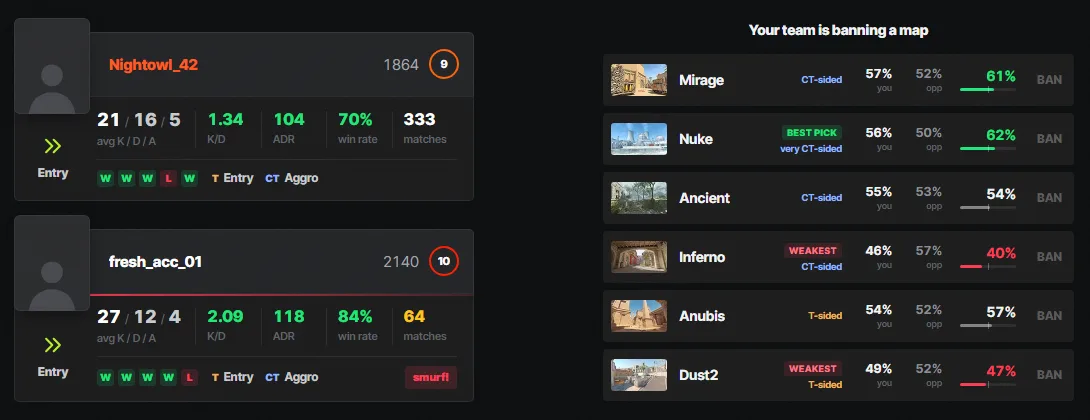
FACEIT’s support centre has a page for most error codes. Search the exact error text there, or open a ticket with a screenshot. And once you’re back in matches, Prefire shows win chance, roles and smurf flags for all ten players before the veto starts.